A wifi tv receiver is the cheapest way to make an older television behave like a new one. It plugs into a spare HDMI port, connects to the home network, and puts streaming apps on a screen that never had them.
This guide explains what the category does, when it is worth buying and when it is not, how to set one up properly, and why your Wi-Fi is far more likely to limit picture quality than the box itself. There is a picture-settings section, a maintenance routine, a troubleshooting list, a buying checklist and six questions answered for households in Saudi Arabia.
What a wifi tv receiver actually does
A television is a display. Historically it also contained a tuner, and that was the whole job: receive a signal, show a picture.
A wifi tv receiver adds the missing half of a modern television — a small computer that runs apps, connects to the internet over Wi-Fi, decodes video and sends the result down an HDMI cable.
Everything the TV already does well is untouched. The panel, the backlight and the speakers stay exactly as they are; only the source changes, and it changes to something far more capable than a built-in tuner.
That division is what makes the category good value. A television panel lasts many years, while the software inside one ages quickly, and a wifi tv receiver lets you replace the fast-ageing half on its own.
When it is worth buying
There are three situations where this makes obvious sense, and one where it does not.
The first is a good but non-smart television. If the picture is fine and the set simply has no apps, adding a small box is far cheaper than replacing a working screen.
The second is a smart TV that has become slow. Built-in platforms often stop receiving updates long before the panel wears out, and a wifi tv receiver bypasses sluggish menus with faster, current software.
The third is a second screen — a bedroom or a majlis TV that rarely justifies a full replacement but would be more useful with apps on it.
Where it does not help is picture quality on an older panel. A wifi tv receiver cannot make a screen show colours or resolution it was never built for, and no box turns an HD television into a 4K one.
What makes a good wifi tv receiver
Four things separate a wifi tv receiver that gets used daily from one that is quietly unplugged after a month.
Wireless performance
This is the feature that matters most and the one people check last. Streaming at high resolution needs a stable connection, not just a fast one.
Support for the 5 GHz band is the practical dividing line. A wifi tv receiver limited to 2.4 GHz shares that crowded band with every microwave, neighbour and phone in range, and it shows up as buffering at the worst moment.
Processing and memory
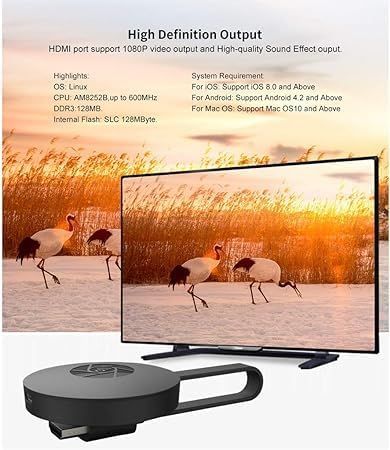
Menus, app launches and switching between services are all decided by the processor and available memory rather than by the internet connection.
A box that feels slow in a menu will feel slow forever. This is the part of a wifi tv receiver that cannot be improved later, so it is worth paying attention to at the point of purchase.
Ports and connections
HDMI is the essential one, and the standard the whole category is built around. The technical background is set out on the HDMI reference page.
Beyond that, a USB port lets you play files from a drive, and an Ethernet socket is a genuine advantage where a cable can reach, because a wired connection removes the single biggest source of streaming problems.
The remote
You will touch the remote more than any other part. Check that it is a sensible size, that the buttons are laid out logically and that it does not need to be pointed with precision from across a room.
The WLD Store pick: 4K HD WiFi TV Receiver
WLD Store lists the 4K HD WiFi TV Receiver in its Electronics and TV & Home Entertainment range. Here is what the listing states:
- Product: 4K HD WiFi TV Receiver
- Brand: WLD
- Category: Electronics — TV & Home Entertainment
- Form: described as a compact digital streaming box
- Resolution: the listing states it delivers 4K Ultra HD over Wi-Fi
- Features: described as supporting multiple streaming apps and USB playback
- Setup: the listing describes easy setup on any TV with an HDMI port
- Availability: available across Saudi Arabia with secure checkout
- SKU: WLD-KSA-0064-(KD-KD0154)
Full specifications, images and current availability are on the 4K HD WiFi TV Receiver product page.
Setting it up step by step
- Find a free HDMI port. Note its number, because you will need to select that input on the television afterwards.
- Power the box from a wall socket where possible. A TV’s USB port often supplies less current than a streaming device needs, which causes restarts that look like faults.
- Connect HDMI before power. Some devices only detect the display properly during startup, so plug the cable in first and switch on afterwards.
- Select the right input. Use the source or input button on the TV remote and choose the HDMI number you noted.
- Join the 5 GHz network. Where two network names exist, pick the 5 GHz one for any wifi tv receiver that is within reasonable range of the router.
- Sign in to your services. Use your own subscriptions and accounts, entered on the device rather than shared from elsewhere.
- Run any available update. The software shipped on a new box is often months old, and updating first avoids chasing problems that are already fixed.
Getting the best picture from your TV
A surprising amount of picture quality is decided by settings that were wrong out of the box, on the television rather than on the streaming device.
Start with the picture mode. Most televisions ship in a bright shop mode that oversaturates colour and crushes detail. Standard, Cinema or Movie is usually far closer to correct.
Turn off motion smoothing if faces look oddly fluid. It is sold under many names and it makes film footage look like video, which most people dislike once they notice it.
Check whether the HDMI port you used supports the TV’s full capability. On many sets only some ports do, and moving a wifi tv receiver one socket along occasionally fixes a resolution problem entirely.
Finally, match the output resolution to the panel. Forcing an output the television cannot display produces a black screen or a scaled, softer image rather than a sharper one.
Wi-Fi is usually the bottleneck
When streaming stutters, the wifi tv receiver gets blamed and the network is almost always responsible.
Distance and walls matter more than the number on your internet package. A router two rooms away behind a concrete wall delivers a fraction of what it delivers in the same room.
Prefer the 5 GHz band where the signal is strong enough to reach. It is faster and much less congested, though it travels less well through walls than 2.4 GHz does.
Position matters at both ends. A wifi tv receiver tucked behind a large metal-framed television, inside a closed cabinet, is being shielded from the very signal it depends on.
If a cable can reach, use it. Ethernet removes interference, congestion and distance from the equation in one step, and it is the single most effective fix for buffering.
Playing your own files over USB
The USB port is the feature people forget and then use constantly once they discover it.
Photos and home video from a phone, holiday footage from a camera, or files copied from a computer can all be played back on the television without any network involvement.
Format the drive to a filesystem the device recognises, and keep folders shallow. A wifi tv receiver browsing a drive with thousands of files in one folder will be slow regardless of how fast the processor is.
Very large high-resolution video files are the usual failure point. If playback stutters from USB while streaming is fine, the file itself is likely more demanding than the hardware can decode.
Care and maintenance
A wifi tv receiver needs almost nothing, but the little it needs is worth doing.
Give it air. Streaming boxes generate heat, and a wifi tv receiver sealed inside a closed cabinet with a games console will throttle or restart on a hot afternoon.
Keep dust off the vents. In this climate dust accumulates quickly, and a blocked vent is the most common cause of unexplained heat problems.
Install updates when offered. They fix app compatibility and security issues, and skipping them for a year is how a working box becomes an unreliable one.
Restart it occasionally. A device left running for months benefits from a proper power cycle, which clears memory in a way that closing an app does not.
Common problems and quick fixes
- No signal on the TV. Wrong input selected, or the HDMI cable was connected after power-on. Select the correct source and restart the box with the cable already in place.
- Constant buffering. Almost always the network. Move closer to the router, switch to 5 GHz, or connect Ethernet if a cable can reach.
- Random restarts. Usually inadequate power from a TV USB port, or overheating in a closed cabinet. Use a wall adapter and give it ventilation.
- The remote stops responding. Flat batteries or an obstructed line of sight. Replace both cells and check nothing is sitting in front of the sensor.
Box, stick or smart TV
Three products solve overlapping problems, and the differences are practical rather than technical.
A smart TV needs nothing extra, and its software ages faster than the panel. Many are excellent for two or three years and frustrating by year five.
A streaming stick hides behind the television and is genuinely tidy. It usually has fewer ports, a smaller aerial and less room to dissipate heat.
A wifi tv receiver in box form typically has more connections, better cooling and space for a stronger antenna. It has to sit somewhere visible, which is the trade.
For a bedroom TV a stick is often enough. For a main television that gets daily use, a box is usually the better long-term choice.
Who should skip it
Anyone with a current smart television they are happy with does not need one. Adding a second interface to a set that already works well creates confusion rather than convenience.
Households with genuinely weak internet will not enjoy it. A wifi tv receiver cannot create bandwidth that is not there, and streaming on a marginal connection is a frustrating experience.
People who only watch broadcast channels should also pass. This category is built around apps and internet delivery, not around a traditional aerial or dish.
Where to place it in the room
Placement affects both signal and heat, and it is the easiest thing to get wrong when tidying cables.
Keep it out from behind the television if you can. A large panel is a substantial obstruction between a small antenna and a router in another room.
Avoid stacking it on a games console or an amplifier. Both run hot, and a wifi tv receiver sitting on top of one inherits that heat all evening.
Leave a finger’s width of air on each side. Ventilation is not decorative; it is what keeps the processor at full speed rather than throttled.
Think about the remote’s path too. An infrared remote needs a clear line to the device, so a box hidden inside a solid cabinet will need the door left open.
Sound: the part people forget
Picture gets all the attention, and audio is where a new source most often causes an unexpected problem.
If you use a soundbar or receiver, decide which device is the switchboard. Running a wifi tv receiver into the television and letting the TV pass audio onward is simplest; running it into the soundbar first usually gives better sound but adds a second remote to the routine.
Check the audio output setting on the box if dialogue sounds thin or effects are missing. A device set to output surround into stereo television speakers can produce exactly that.
Lip-sync drift is the other common annoyance. Most televisions and soundbars have an audio delay setting, and a few milliseconds of adjustment fixes what looks like a fault in the streaming device.
Accounts, profiles and household use
A shared television is used by several people, and a little organisation at setup prevents months of small irritations.
Set up separate profiles where an app supports them. Recommendations become useless when a child’s viewing and an adult’s viewing are blended into one history.
Use your own subscriptions and sign in on the device itself. Entering credentials with an on-screen keyboard is tedious once and permanent afterwards, which is a fair trade.
Where the platform offers parental controls, set them during setup rather than later. A wifi tv receiver in a family room is easier to configure before anyone has grown used to the current arrangement.
What to check before you buy a second one
Households that like the first box often add another, and a few things are worth knowing before repeating the purchase.
Check the signal where the second television actually is. A back bedroom at the far end of a villa may be well below what the main living room enjoys, and a wifi tv receiver there may need a mesh point rather than a better box.
Consider whether the second screen needs the same capability. A bedroom television used for half an hour a night rarely justifies matching the main room specification.
Keep the remotes distinguishable. Two identical boxes in one home produce two identical remotes, and a small sticker on the back saves a great deal of confusion.
Buying checklist
- Does it support 5 GHz Wi-Fi? The most important specification for stable streaming.
- Is there an Ethernet port? Useful if a cable can reach; it solves buffering outright.
- Does your TV actually support the resolution? A 4K source needs a 4K panel to show any benefit.
- Is there a USB port for local files? A genuinely useful feature that costs nothing extra.
- Does it come with a mains power adapter? TV USB ports often supply too little current.
Other electronics picks at WLD Store
These related listings sit nearby in the Electronics range.

Frequently asked questions about a wifi tv receiver
Will a wifi tv receiver work on any television?
Any television with a free HDMI port will work. Very old sets with only composite or component inputs will not, because the category is built entirely around HDMI output.
Do I need 4K for it to be worthwhile?
No. A 4K source on an HD television simply displays at HD. The apps, the speed and the interface are the real benefit, and they improve any screen regardless of resolution.
How fast does my internet need to be?
Standard definition needs very little, HD needs a moderate connection and 4K needs a consistently good one. Stability matters more than peak speed, which is why a wired connection outperforms a marginal wireless one.
Can I watch my own videos on it?
Yes, through the USB port. Copy files to a drive, plug it in and browse to them. Keep folders small and expect very large high-resolution files to be the most demanding.
Does it replace my satellite or cable box?
Only if everything you watch is available through apps you subscribe to. A wifi tv receiver delivers internet services; it does not tune broadcast or satellite channels.
Why does it keep restarting?
Usually power or heat. Move it from a TV USB port to a wall adapter, and give it space to breathe rather than leaving it sealed in a cabinet on a hot day.
Set up on the right network and given a little air, a wifi tv receiver is the cheapest meaningful upgrade an older television can get. You can view the current listing on the 4K HD WiFi TV Receiver page or browse more electronics in the TV & Home Entertainment section, with secure checkout and availability across Saudi Arabia.






Add comment